
I Created an Active Directory Lab
PROJECTSPROJECTS
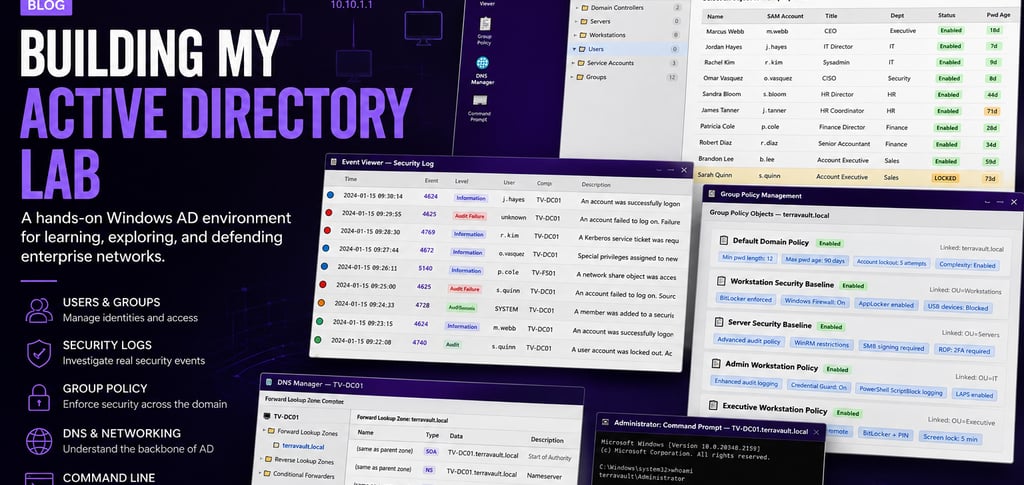
I created this Active Directory lab to help me understand how a real Windows domain environment works from both an administrator and cybersecurity defender point of view. Active Directory can look confusing when you are only reading about it, so I wanted to build something practical where I could see users, computers, logs, policies, DNS records, and command-line investigation in one place.
The lab is called the Hackademy Active Directory Lab, and it is based on a fictional company called TerraVault Financial Group. The domain used in the lab is terravault.local, and the main domain controller is TV-DC01. My goal was to make the environment feel like a real enterprise network, where different departments, users, service accounts, servers, workstations, and security policies all connect together.
Main AD Lab desktop
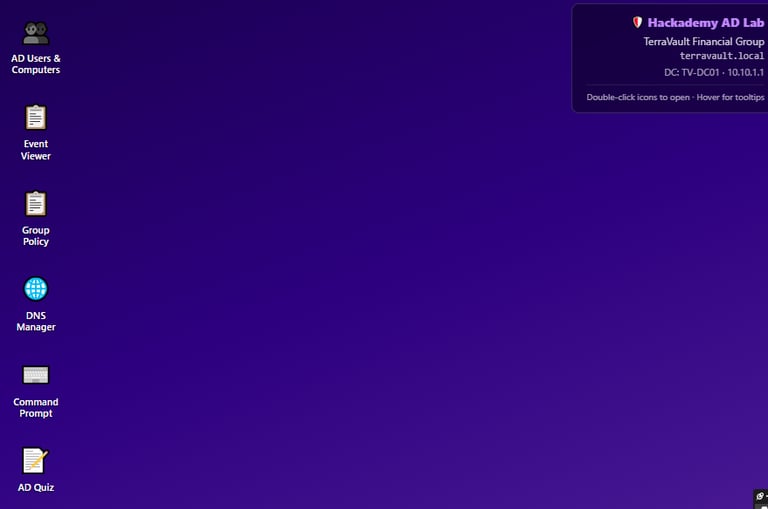
The first screenshot shows the main desktop of the lab. I designed it like a Windows-style admin environment with different tools placed on the left side. The tools include Active Directory Users and Computers, Event Viewer, Group Policy, DNS Manager, Command Prompt, and an AD Quiz. I wanted the interface to be simple enough for beginners to navigate, but still realistic enough to help them understand what they would see in a real Windows Server environment.
The panel on the right shows the lab identity: Hackademy AD Lab, TerraVault Financial Group, the domain terravault.local, and the domain controller TV-DC01 with the IP address 10.10.1.1. This is important because every Active Directory environment needs a clear domain structure. Before you investigate anything, you should know the domain name, the domain controller, and the system you are working inside.
Active Directory Users and Computers
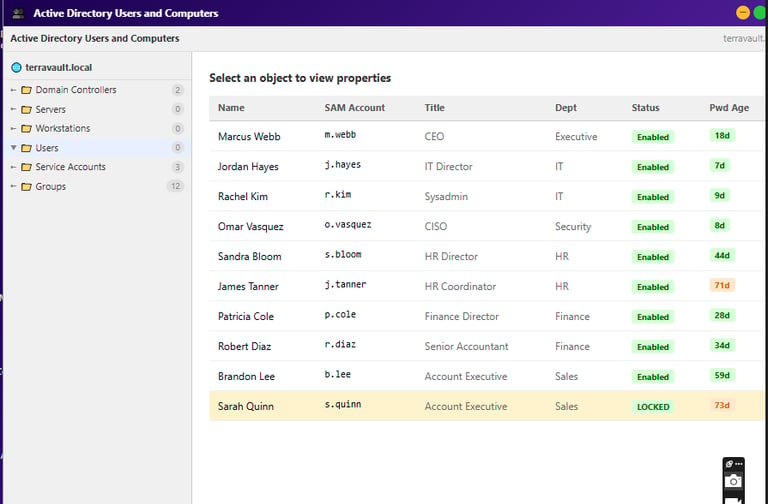
The second screenshot shows the Active Directory Users and Computers section. This is one of the most important parts of the lab because it shows how identity is managed inside a Windows domain. In the left panel, you can see different containers such as Domain Controllers, Servers, Workstations, Users, Service Accounts, and Groups. These are used to organize the domain properly.
In the user list, you can see different employees such as executives, IT staff, HR staff, finance staff, and sales staff. Each account has important details like the SAM account name, job title, department, account status, and password age. This helps show that Active Directory is not just a list of usernames. It is the identity layer of the company.
One thing I wanted this screenshot to show is how small account details can matter during an investigation. For example, Sarah Quinn’s account is shown as locked, and the password age is also visible. A locked account may simply mean the user typed the wrong password too many times, but it could also point to password guessing or a password spray attempt. This is why defenders need to understand account status, password age, department, and user roles.
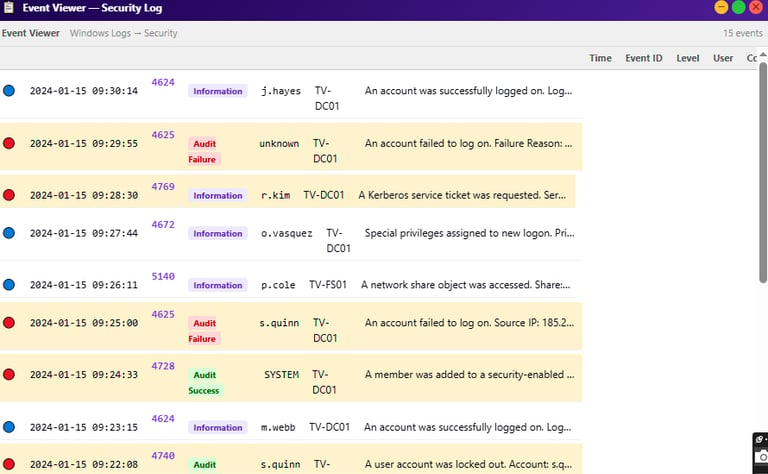
The third screenshot shows Event Viewer, specifically the Security Log. This section is important because Windows records security activity through Event IDs. In the screenshot, you can see different events such as successful logons, failed logons, Kerberos activity, special privileges, network share access, account lockouts, and group membership changes.
This is where the lab starts connecting administration with cybersecurity. A defender does not only look at users and groups. A defender also has to read logs and understand what happened. For example, Event ID 4624 usually points to a successful logon, while Event ID 4625 points to a failed logon. Event ID 4769 can show Kerberos service ticket activity, and Event ID 4728 can show that a user was added to a security-enabled group.
The key lesson from this screenshot is that one event alone may not tell the full story. A failed login may be normal. A successful login may be normal. But when multiple suspicious events happen close together, they can form an attack story. This is why log correlation is important in SOC analysis and incident response.
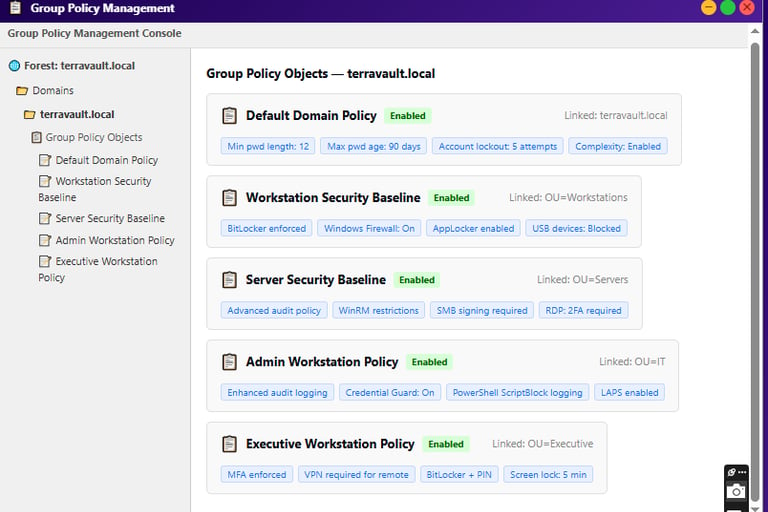
The fourth screenshot shows Group Policy Management. This section explains how security settings are enforced across the domain. In the lab, I included policies like the Default Domain Policy, Workstation Security Baseline, Server Security Baseline, Admin Workstation Policy, and Executive Workstation Policy.
The Default Domain Policy shows basic rules such as minimum password length, maximum password age, account lockout attempts, and password complexity. The Workstation Security Baseline includes controls like BitLocker, Windows Firewall, AppLocker, and blocked USB devices. The Server Security Baseline includes controls like advanced audit policy, WinRM restrictions, SMB signing, and RDP with 2FA.
This screenshot is important because it shows that Active Directory security is not only about detecting attacks. It is also about preventing them. Good Group Policy settings can reduce weak passwords, limit lateral movement, protect endpoints, and make it harder for attackers to abuse stolen credentials.
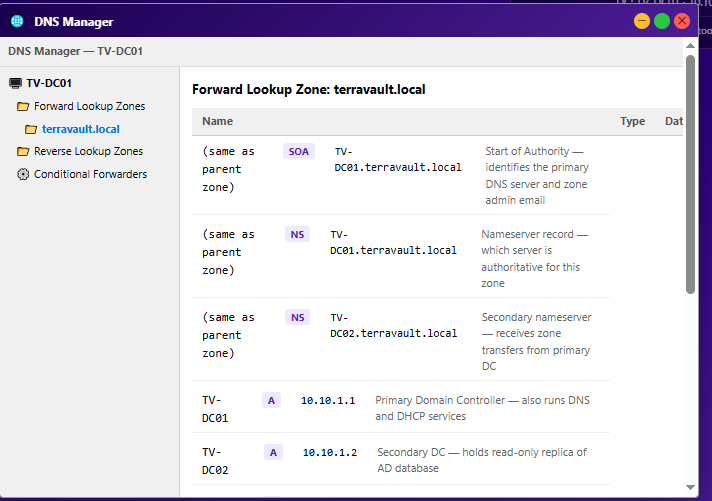
The fifth screenshot shows DNS Manager for the terravault.local zone. DNS is very important in Active Directory because domain-joined computers use DNS to find domain controllers and other domain services. If DNS is broken, Active Directory can start failing.
In the screenshot, you can see DNS records such as SOA, NS, and A records. The A records map hostnames like TV-DC01 and TV-DC02 to IP addresses. This helps systems communicate using names instead of only IP addresses. The NS records show the nameservers for the domain, while the SOA record identifies authority for the DNS zone.
This section helped me understand that DNS is not just a networking topic. In Active Directory, DNS supports authentication, domain communication, Kerberos, and service discovery. For security, DNS records can also reveal important information about the environment, so they must be properly managed and protected.
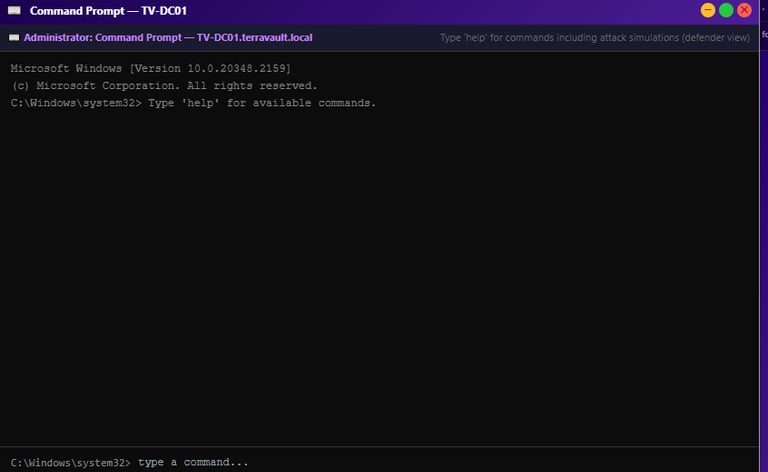
The sixth screenshot shows the Command Prompt section running on TV-DC01.terravault.local. I included this section because cybersecurity students need to be comfortable with both graphical tools and command-line investigation. In real environments, administrators and defenders often use commands to quickly check domain information, users, groups, policies, DNS records, and security activity.
The purpose of this part of the lab is not just to type commands. The goal is to understand what each command is showing and how the output helps during investigation. For example, command-line checks can help confirm the domain, inspect users, verify group memberships, check DNS records, and review security-related information faster than clicking through many windows.
The lab also includes Active Directory security scenarios such as Kerberoasting, Pass-the-Hash, BloodHound-style enumeration, DCSync detection, and insider threat investigation. I wanted these scenarios to be shown from a defender’s point of view, so students can understand what suspicious behavior looks like in logs and why certain activities matter.
For example, Kerberoasting teaches why service accounts with old or weak passwords are dangerous. Pass-the-Hash teaches why stolen NTLM hashes can be abused if protections are weak. DCSync teaches why domain replication activity must be monitored carefully. Insider threat investigation teaches that not every security incident comes from outside the company. Sometimes the risk can come from someone already inside the environment.
The AD Quiz section was added to help test understanding after going through the lab. I did not want the lab to only be about clicking around. I wanted it to also check whether the student understands the purpose of Active Directory, the role of domain controllers, the meaning of Event IDs, the importance of Group Policy, the purpose of DNS, and the security risks around service accounts and privileged groups.
Building this lab helped me understand Active Directory in a deeper way. I had to think about how a real company would organize users, how departments would be structured, what kind of logs defenders would need, what security policies should exist, and how attack scenarios would appear from the blue team side.
The biggest lesson I learned is that Active Directory is not one single topic. It is a combination of identity, authentication, authorization, logging, policy enforcement, DNS, administration, and security monitoring. Once I started connecting those pieces together, Active Directory became much easier to understand.
This project is important for my portfolio because it shows that I am not only learning cybersecurity theory. I am also building practical labs that explain real enterprise security concepts in a beginner-friendly way. My goal with this lab was to make Active Directory easier to understand for students who are just getting started, while still showing the kind of details that matter in real-world security work.
Overall, the Hackademy Active Directory Lab gave me a practical way to teach and learn Windows domain security. It helped me understand how administrators manage a domain, how defenders read logs, how policies protect systems, how DNS supports authentication, and how suspicious activity can be investigated inside an enterprise environment.