
Building My Malware Analysis Lab for Ransomware and Rootkit Investigation
PROJECTSPROJECTS

I created this Hackademy Malware Analysis Lab to help me understand how malware investigation works from a practical defender’s point of view. I wanted to build a lab where I could analyze suspicious Windows files, observe their behavior, check running processes, review indicators of compromise, and understand how tools like PEStudio, Process Monitor, YARA, VirusTotal, Cuckoo Sandbox, Task Manager, Registry Editor, File Explorer, and PowerShell can support malware analysis.
The goal of this project was not just to make a Windows-looking environment. I wanted the lab to feel like a real malware investigation workstation where a student or analyst can open suspicious files, compare different samples, and understand why certain behaviors are dangerous. The lab focuses mainly on ransomware behavior and rootkit indicators, which are two areas that are very important in modern cybersecurity.
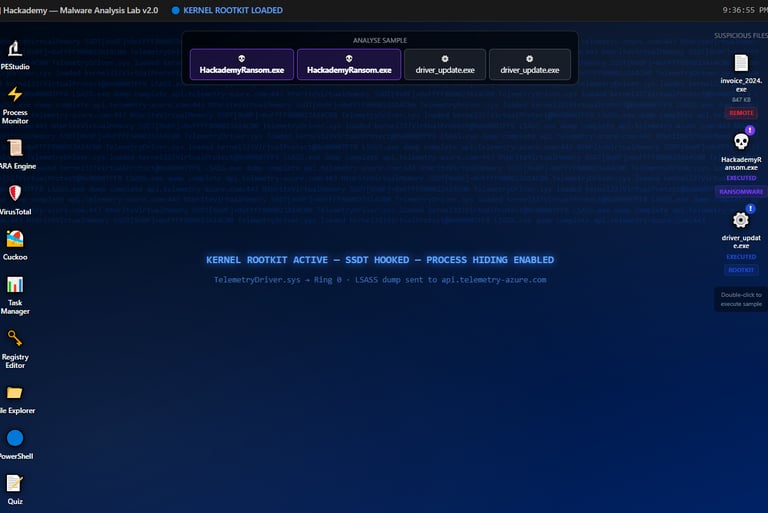
Main malware analysis desktop with PowerShell
The first screenshot shows the main Windows-style malware analysis desktop. On the left side, I placed the main tools used in the investigation: PEStudio, Process Monitor, YARA Engine, VirusTotal, Cuckoo, Task Manager, Registry Editor, File Explorer, and PowerShell. On the right side, I placed suspicious files such as invoice_2024.exe, HackademyRansom.exe, and driver_update.exe.
This layout was intentional. I wanted the lab to show that malware analysis is not done with only one tool. A good analyst has to combine different views. PowerShell can be used for command-line inspection, File Explorer shows where suspicious files are located, Task Manager shows what is running, Process Monitor shows behavior, PEStudio helps with static analysis, YARA helps with detection rules, VirusTotal-style results show antivirus detections, and Cuckoo Sandbox shows behavior in a controlled analysis view.
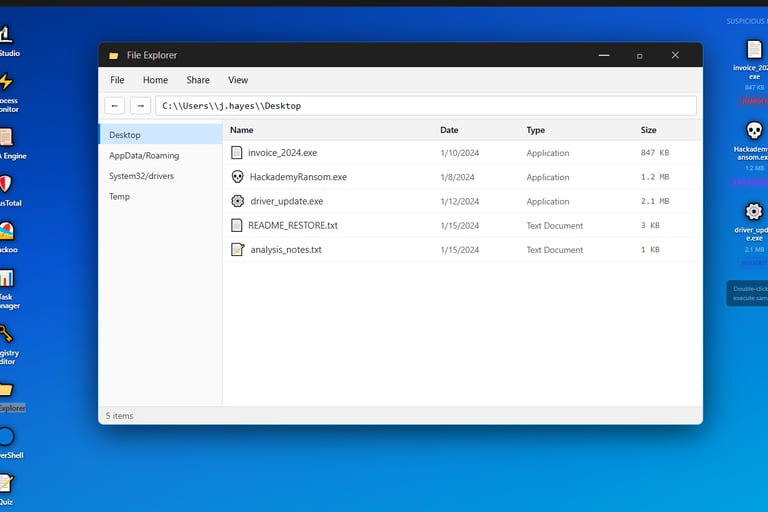
File Explorer showing suspicious samples
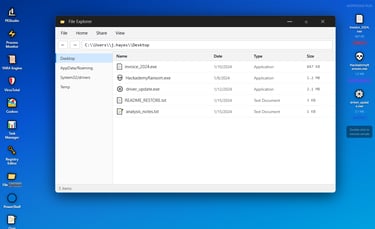
The second screenshot shows File Explorer opened to the user’s desktop. Here, the suspicious files are visible in one location. The files include invoice_2024.exe, HackademyRansom.exe, driver_update.exe, README_RESTORE.txt, and analysis_notes.txt.
This section teaches an important beginner lesson: file names can be misleading. A file like invoice_2024.exe may look like a normal invoice, but the .exe extension means it is an executable program, not a document. Attackers often use names that look familiar or urgent so users will double-click them. The ransomware sample, HackademyRansom.exe, represents the type of file that may encrypt user data, while driver_update.exe represents a suspicious file pretending to be a driver update.
The presence of README_RESTORE.txt is also important because ransomware often creates ransom note files after encryption. In a real investigation, a file like that would immediately raise concern because it can show that files may have been encrypted and the attacker is trying to pressure the victim.
Task Manager showing active threats
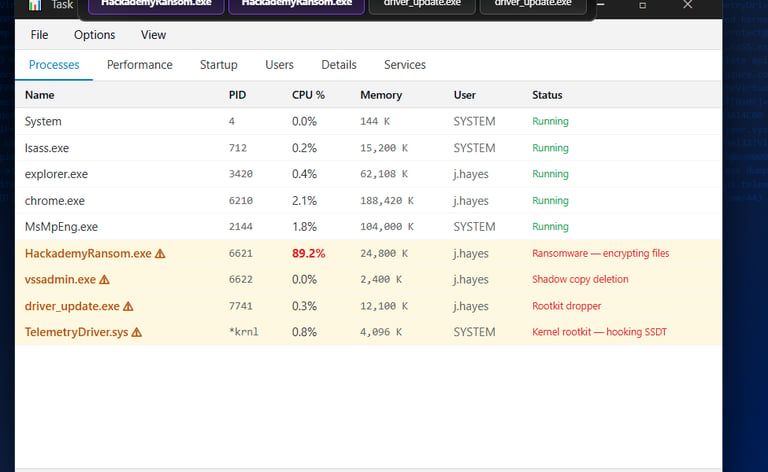
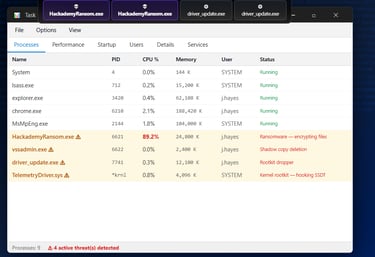
The third screenshot shows Task Manager. This part of the lab is useful because it gives a live view of what is running on the system. In the screenshot, normal processes like explorer.exe, chrome.exe, and MsMpEng.exe appear beside suspicious processes like HackademyRansom.exe, vssadmin.exe, driver_update.exe, and TelemetryDriver.sys.
This screenshot teaches how malware behavior can appear in process monitoring. HackademyRansom.exe is shown using high CPU and is marked as ransomware encrypting files. That is important because ransomware normally performs heavy file operations when encrypting many files. The process vssadmin.exe is also suspicious in this context because ransomware often tries to delete shadow copies to stop the victim from restoring files. The driver_update.exe process is marked as a rootkit dropper, and TelemetryDriver.sys is shown as a kernel rootkit hooking the SSDT.
The lesson here is that Task Manager can give an analyst a quick starting point. It may not show everything, but it can help identify strange processes, high resource usage, unexpected child processes, and suspicious system-level activity.
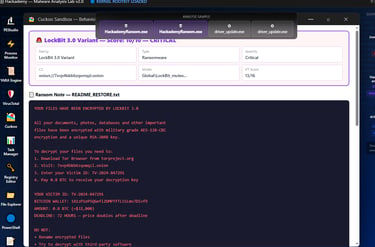
Cuckoo Sandbox ransomware behavior
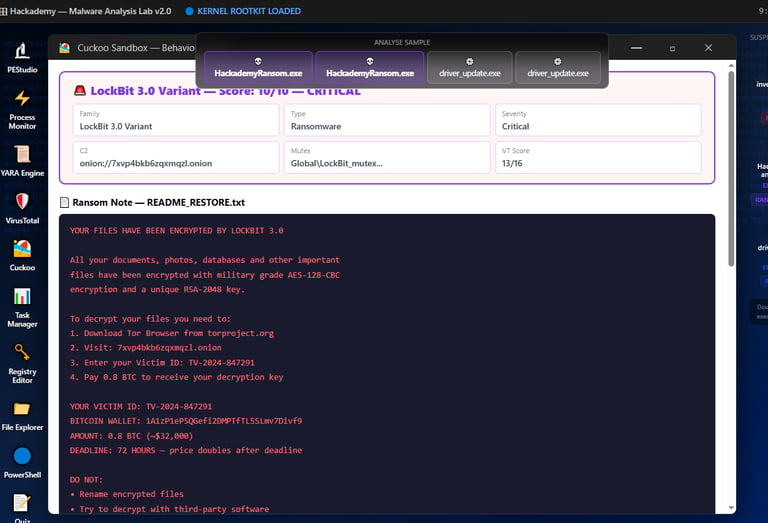
The fourth screenshot shows the Cuckoo Sandbox behavior analysis for HackademyRansom.exe. This section is important because sandboxing helps analysts observe what a suspicious file does in a controlled environment. Instead of guessing, the analyst can look at behavior such as file encryption, ransom note creation, mutex usage, and network communication.
The lab identifies the sample as a LockBit-style ransomware variant with a critical score. It also shows a ransom note named README_RESTORE.txt, a C2 onion address, a mutex value, and other ransomware indicators. These details help explain how malware can leave traces behind. A mutex can be used by malware to make sure only one copy of itself runs at a time. A C2 address shows where the malware may try to communicate. A ransom note shows the attacker’s demand after encryption.
This section helps students understand that malware analysis is about collecting evidence. The analyst is not only asking, “Is this file bad?” The analyst is asking, “What did it do, what did it change, what did it contact, and what evidence did it leave behind?”
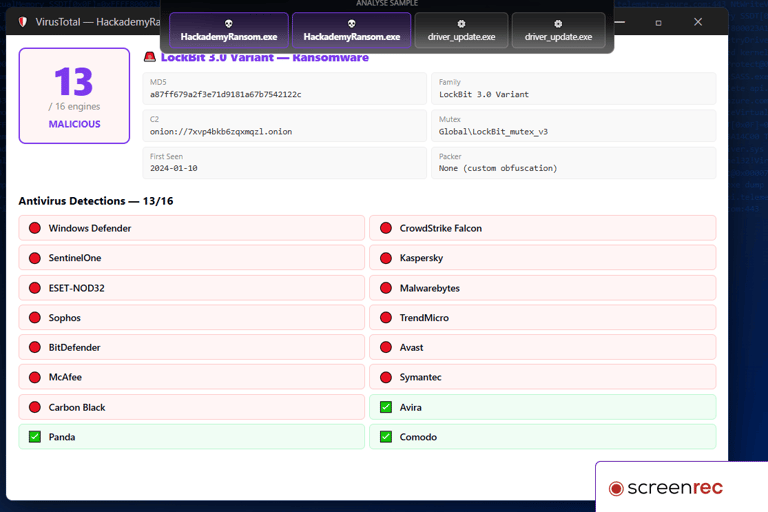
VirusTotal-style detection results
The fifth screenshot shows a VirusTotal-style analysis page. The file is detected by 13 out of 16 antivirus engines. This teaches how reputation and detection results can support an investigation.
The important thing to understand is that antivirus detections are useful, but they should not be the only evidence. Some engines may detect a file, while others may miss it. A low detection rate does not always mean a file is safe, and a high detection rate does not always explain exactly what the file does. That is why I included VirusTotal-style results alongside PEStudio, YARA, Cuckoo, Process Monitor, and Task Manager.
In this case, the high detection count supports the idea that the sample is malicious. It gives the analyst confidence, but the behavior analysis still matters because behavior explains the impact.
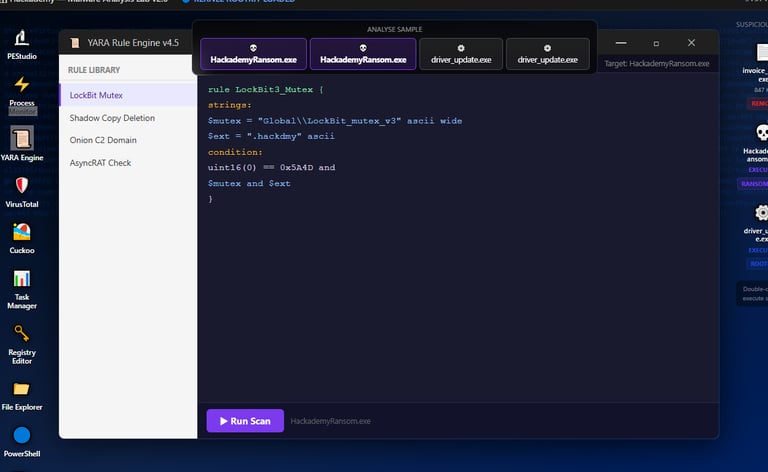
YARA Engine rules
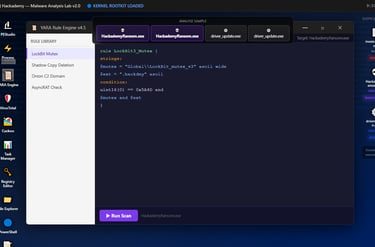
The sixth screenshot shows the YARA Rule Engine. YARA is important because it allows analysts to write rules that detect malware based on strings, patterns, and conditions. In the lab, the selected rule is looking for a LockBit-style mutex and a specific extension pattern.
This section teaches how detection engineering works. Instead of depending only on antivirus tools, analysts can create their own detection logic. For example, if a ransomware sample uses a unique mutex or drops files with a specific extension, a YARA rule can help identify similar samples later.
The main lesson from this screenshot is that YARA helps turn analysis findings into reusable detection. Once you discover an indicator, you can write a rule so the same pattern can be found again.
Process Monitor behavior
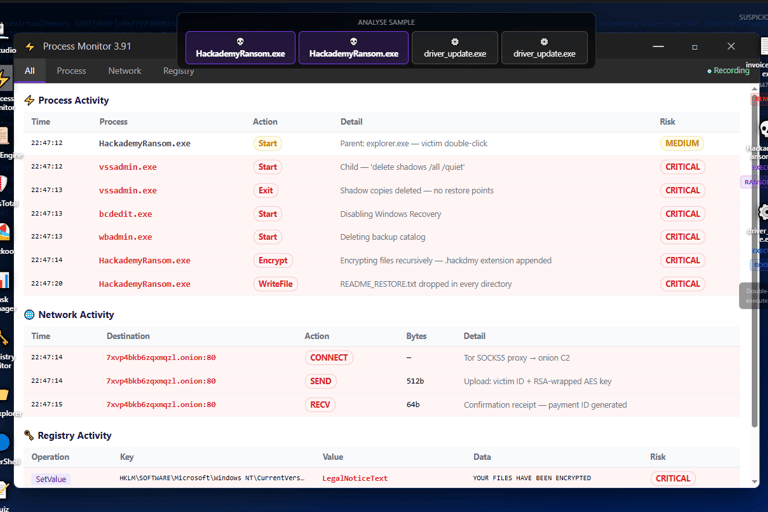
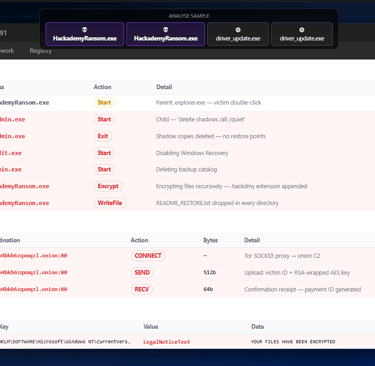
The seventh screenshot shows Process Monitor. This is one of the most important parts of the lab because it shows behavior in more detail. In the screenshot, the ransomware starts from explorer.exe, launches vssadmin.exe, deletes shadow copies, disables recovery, deletes backup catalogs, encrypts files, writes a ransom note, and communicates with an onion C2 address.
This is where the attack story becomes clear. The malware does not just appear as one process. It performs a chain of actions. It starts, tries to stop recovery options, encrypts files, drops a ransom note, and contacts attacker infrastructure. This is the type of behavior defenders need to understand during incident response.
The network activity section also shows connection attempts and data transfer to an onion address. That matters because ransomware may communicate with command-and-control infrastructure to send victim information or receive instructions. The registry activity also matters because malware may change system settings, persistence keys, ransom note text, or security-related values.
Rootkit active screen
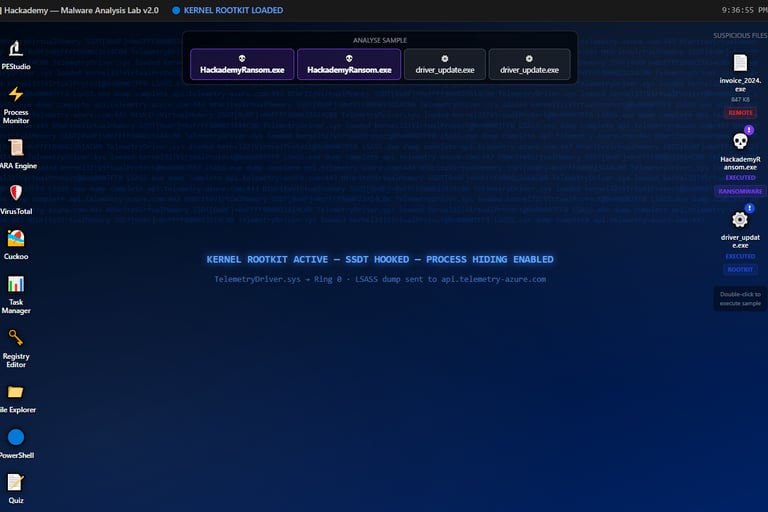
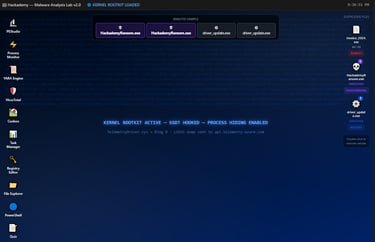
The ninth screenshot shows the rootkit side of the lab. The desktop message shows that a kernel rootkit is active, the SSDT is hooked, and process hiding is enabled. It also mentions TelemetryDriver.sys, ring 0 activity, and LSASS dump activity being sent to an external-looking endpoint.
This section was added to teach that not all malware is visible at the normal user level. Rootkits are dangerous because they can operate deep inside the system and hide processes, files, or activity. A kernel-level rootkit is especially serious because it runs with high privileges and can interfere with how the operating system reports information.
The main lesson here is that analysts must understand the difference between normal malware behavior and deeper system compromise. If a rootkit is present, the system may not be trustworthy anymore, because what the analyst sees in normal tools may be incomplete or manipulated.
Building this lab helped me understand malware analysis in a more practical way. Instead of only reading about ransomware, YARA rules, sandboxing, static analysis, and rootkits, I created an environment where those concepts connect together. Each tool gives a different piece of the investigation.
File Explorer shows where suspicious files are located. Task Manager shows what is running. Process Monitor shows behavior. Cuckoo Sandbox summarizes execution. VirusTotal-style results show detection reputation. YARA shows custom detection logic. PEStudio shows static file properties. PowerShell gives a command-line investigation view. Together, they help tell the full story.
This project is important for my portfolio because it shows that I am not only learning cybersecurity concepts. I am also building labs that explain them in a practical and beginner-friendly way. Malware analysis can be difficult for beginners because there are many tools and terms, but this lab breaks it down into visible sections that are easier to understand.
The biggest lesson from building this lab is that malware analysis is about evidence. You do not just say a file is malicious because it looks suspicious. You prove it by looking at process behavior, file changes, registry activity, network connections, hashes, strings, detections, and system impact.
Overall, the Hackademy Malware Analysis Lab helped me create a realistic learning environment for ransomware and rootkit investigation. It shows how defenders can move from a suspicious file to a full investigation by using multiple tools, connecting indicators, and understanding the behavior behind the malware.